Run your first Noxen CVE scan
Add a host, run a scan, read the findings. Five minutes from a fresh Noxen install to a populated dashboard showing real CVE matches against a real Linux box.
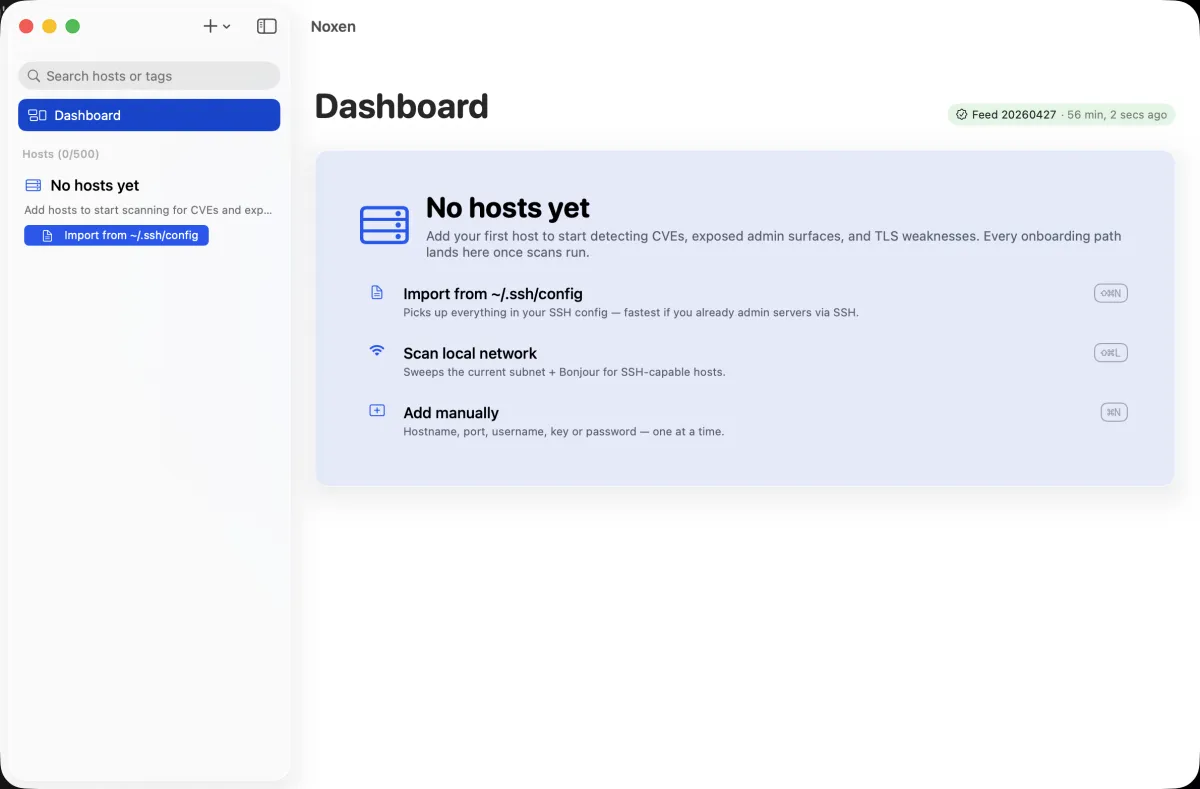
Start from the empty Hosts list
A fresh Noxen install lands you on an empty Hosts list. The sidebar is ready for enrolment, the Dashboard tile shows zeroes, and the + menu in the toolbar exposes every onboarding path.
Pick the fastest enrolment path
Four ways to add hosts; pick whichever matches your existing setup:
- Manual add — single host, fully custom. Use the manual form →
- SSH config import — fastest if you already SSH into these boxes from this Mac. Reads
~/.ssh/config, lists every concrete host, you tick the ones to enrol. Import from~/.ssh/config→ - LAN discovery — sweeps the local subnet for port 22 and Bonjour
_ssh._tcpservices. Surfaces hosts you didn't even know about. Discover on LAN → - Bulk paste — paste a list of
user@host:portlines from a CSV, a Notion page, an Ansible inventory snippet. Bulk paste →
Run the scan
Select your newly-enrolled host in the sidebar. Click Scan now in the toolbar (or press ⌘R). Noxen runs every probe in parallel — port scan, SSH inventory, CVE match, TLS audit, HTTP header audit, exposed admin-surface probe — typically completing in 10–60 seconds per host depending on open-port count. Findings stream into the host detail view as each probe finishes, so you don't wait for the slowest.
For a deep dive into what each probe does, see the scan engine reference.
Read the findings
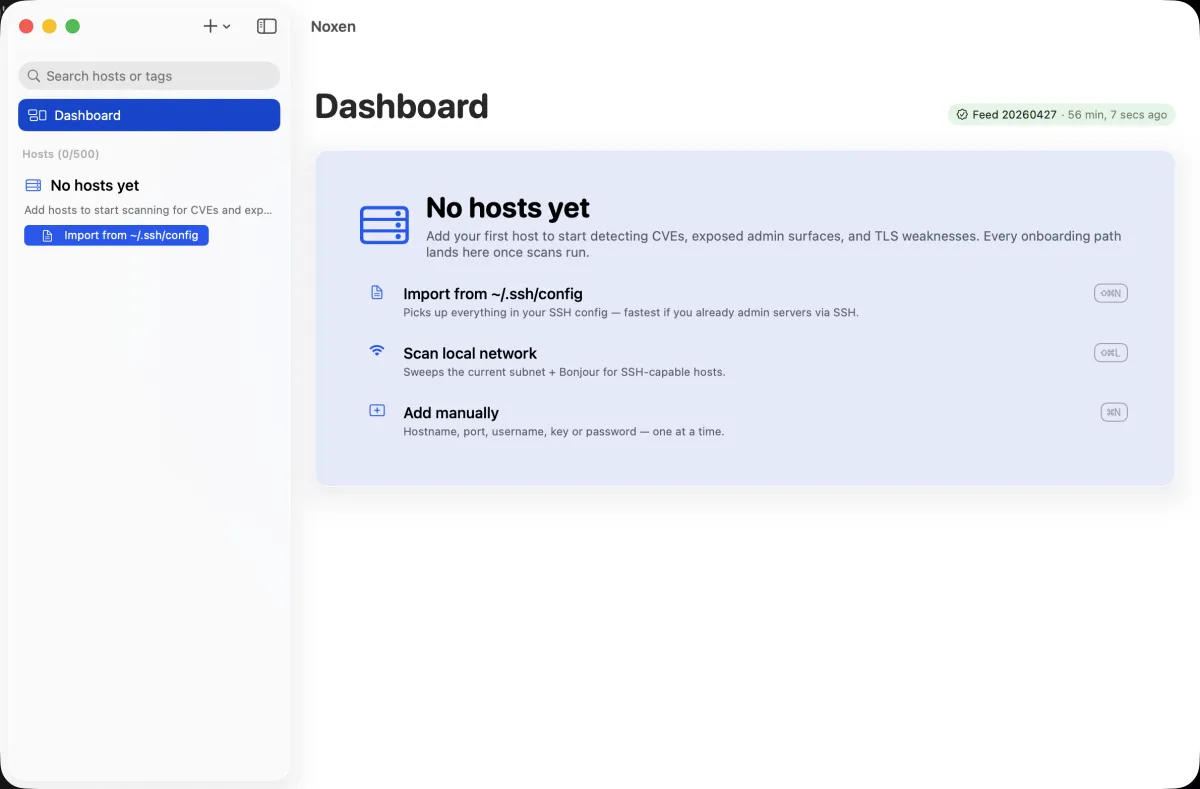
The Dashboard is the at-a-glance view: severity buckets, top critical/high findings, host health table. The host detail view (click any host name) drills into the per-probe findings list, grouped by category.
Every finding has four standard properties:
- Severity
- Critical / High / Medium / Low / Info — distro-tagged labels first, CVSS v3 vector parsed for the rest. Severity reference →
- Category
- CVE match, missing security header, exposed admin surface, weak TLS, open port. Each category has its own UI tab on the host detail.
- Detail
- One-paragraph explanation including the package name, vector, and why it matters in your specific context.
- Remediation
- Distro-specific apt/dnf/zypper command for CVE findings, or configuration guidance for header/admin-surface findings. Remediation reference →
Scan more hosts
Once one host works, enrol the rest of your fleet via SSH config import or LAN discovery, then run Scan all from the toolbar (or ⌘⇧R). Noxen iterates every host sequentially with a live progress banner; cancellation is one keystroke away. See Batch scan for partial-failure handling.
What's next
Set up nightly scheduled scans so findings refresh while you sleep, then wire up Slack/Discord/Teams webhooks if you want critical-only alerts to land in a channel.